This one is simple, but really cool.
You’ll like it.
So, let’s change the mobile menu icon.
This is the mobile menu icon.
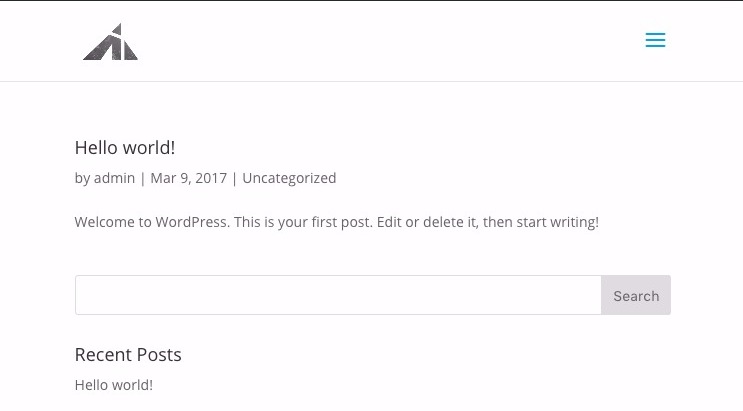
Here’s what we will get in the end
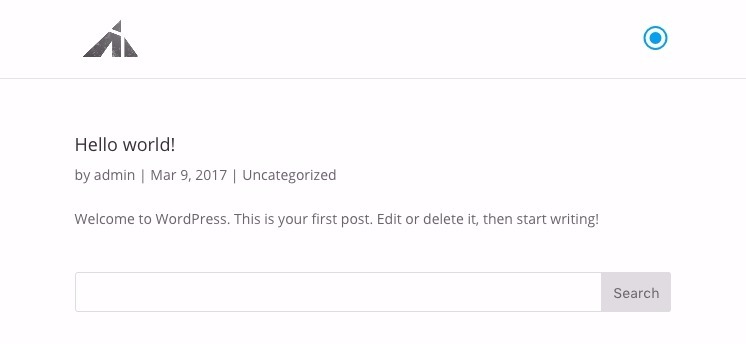
So, for starters, here’s the css code for the mobile menu icon.
.mobile_menu_bar:before {content: " ";}
What you put inside the quotation marks are what becomes the mobile menu icon.
So how do we put an icon in there?
Well you go here for the icon list..
and you find something you want to use.
Now the code part is tricky. (Sort of)
This is what the unicodes for the icons look like
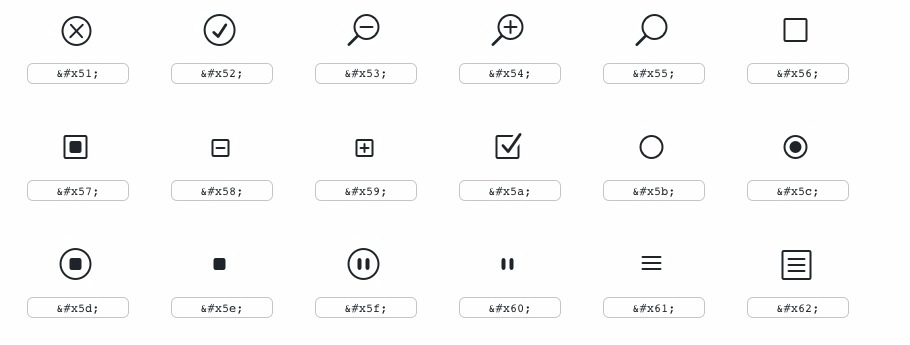
The target shaped icon has the code
\
You are going to change the &#x to a \
and take out the ;
This gives you \5c
That goes inside the quotation marks.
like this:
.mobile_menu_bar:before {content: "\5c";}
and you’ll get a new mobile menu icon.
Bonus: You can use them in the menu as well
This reduces the need for fontawesome sometimes, and loading less stuff to do the same thing is always better.
So, start by adding a class just for the icon set.
.icons {font-family: 'ETmodules' !important;}
And now you can call any unicode icon with the class around it. Like this:
<span class="icons"></span> Calculator
Just drop that in the menu title
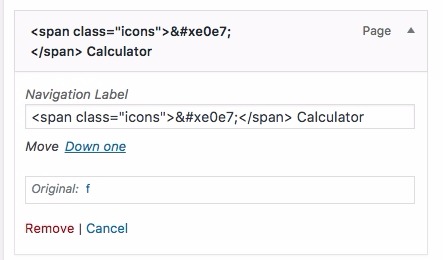
And this is what you get!
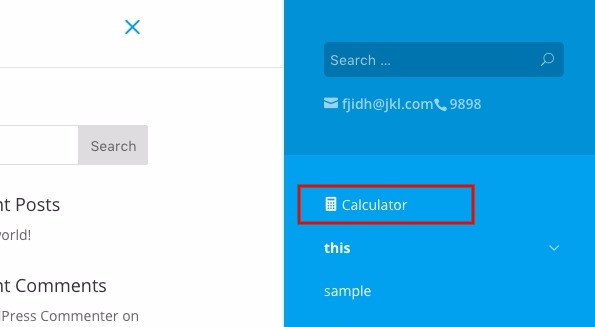
Pretty neat, huh?
Edit:
Because some kind gentleman has commented that the hamburger icon should stay, that doesn’t mean alternate hamburgers like b, c, or even a for a menu that opens to show contact info is not usable.
Also, you can totally do
.mobile_menu_bar:before {content: "\64 MENU";}
Just so the icon will say menu. Have a read here to see why adding the text MENU helps. (Click this sentence)
So yeah, have fun with this new power, and as we all know, the hamburger is ubiquitous enough that people don’t have too much trouble guessing its function. So use this tip wisely.
[sc name=”learn css”]
[sc name=”responsive-ad”]
[sc name=”podcast”]
Reference: This link helped me with modifying the unicode: ElegantTweaks
Photo by Lidye Petit on Unsplash


Bill says:
Hi … thanks for this video. I have found that there are still people who don’t know what the hamburger icon is. For them, I would like to replace the hamburger icon with the word MENU. Can you tell me how to do that? Thanks again.
PK says:
Hi Bill, thank you for the kind words.
Try using this CSS snippet
.mobile_menu_bar:before {
content: “MENU”;
font-family: Arial;
}
Of course you can change Arial to whatever font you choose.
Hope that helps!
DAVID says:
.mobile_menu_bar:before {content: “\64 MENU”;}
doesn’t work… A really strang icon appears instead of ‘MENU’
I’ve find this help site to add MENU text before hamburger icon :
https://www.creativechildthemes.com/10-useful-code-snippets-for-your-divi-menu-mobile/
But MENU text doesn’t click to open mobile menu, just hamburger icon 🙁
PS : You have a great help for DIVI. Thanks. But I don’t receive notification email when reply to my comment.
And sorry for my bad english, I’m a french user and french people are really bad to another language 😐
PK says:
You’re right, I guess no one tried it. haha
The fonts are different. the text “menu” should be in :after or something like that. Good catch.
Scott Harris says:
Thank you! That’s just what I was looking for. I also added a font-weight: bold to make a bolder hamburger.
PK says:
Hi! Thank you for the kind words. I didn’t know you could make the ET font bolder haha.